
Create your first building
For organization admins. During account setup, Sicket takes you to Create your first building. Later, use Buildings > Create Building, or the sidebar Create menu.
Add the building
Section titled “Add the building”- Enter a Building display name that residents will recognize.
- Optionally choose a Building image. Review the square crop and confirm it.
- Pick the building’s theme color.
- Enter the country, street, city, and postal code. Address lookup can help where available; you can enter the fields yourself.
- Review the building information, then create it.
Use the building’s overall address here. Individual house or apartment numbers and labels are added as residential homes, not as extra buildings.
What happens next?
Section titled “What happens next?”The building appears in Buildings and in Current scope. If it is your only building, Sicket selects it automatically.
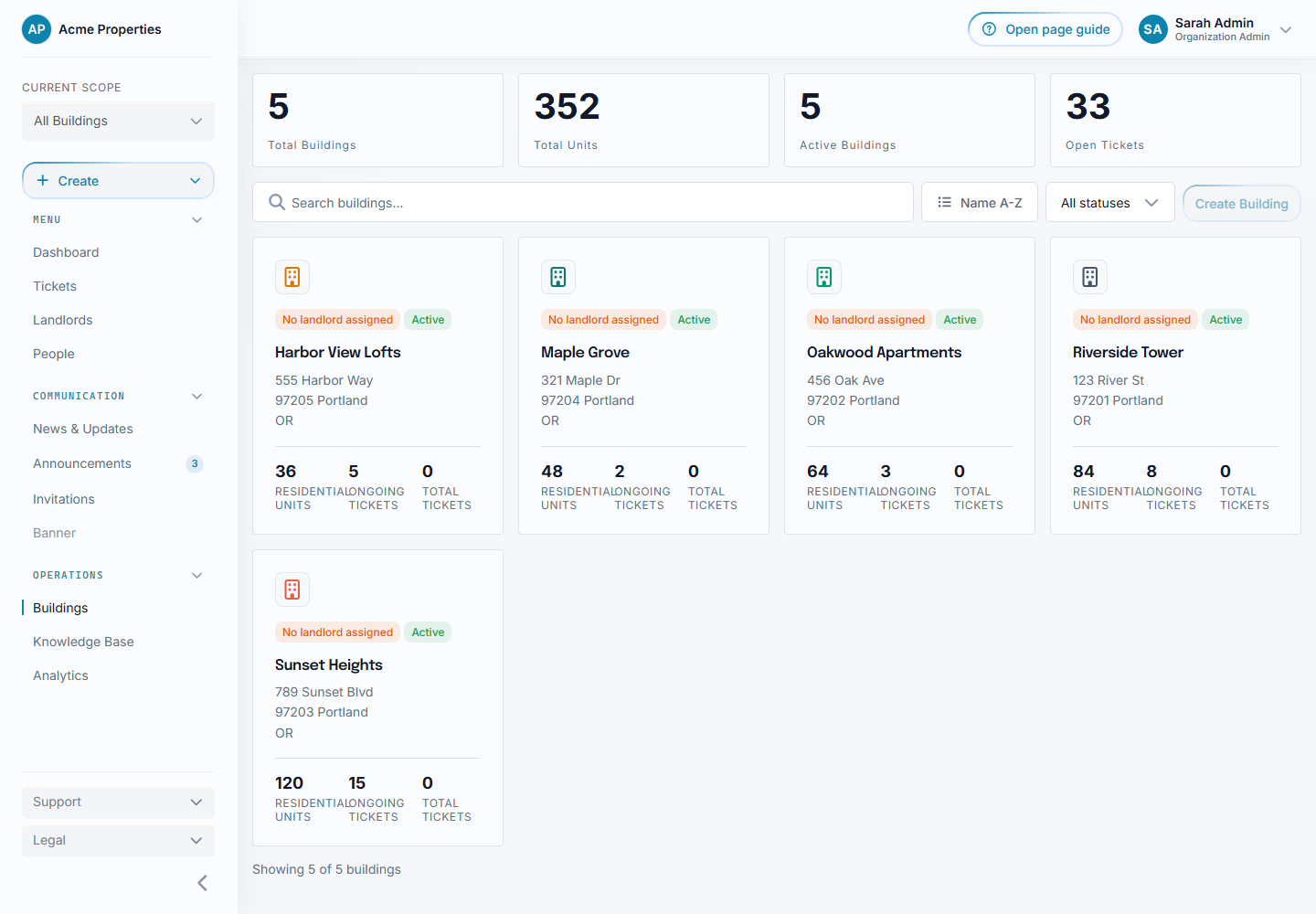
Select the image to enlarge it.
You can now add homes individually, as a number range, or from CSV. This is optional: you can also create a home while inviting or approving a resident.
Next, assign a landlord or invite tenants.
Need to change it later?
Section titled “Need to change it later?”Open the building, then its actions menu and Edit Building. Only organization admins can edit the building name, image, theme, address, and active status.