Skip to content

Create a ticket

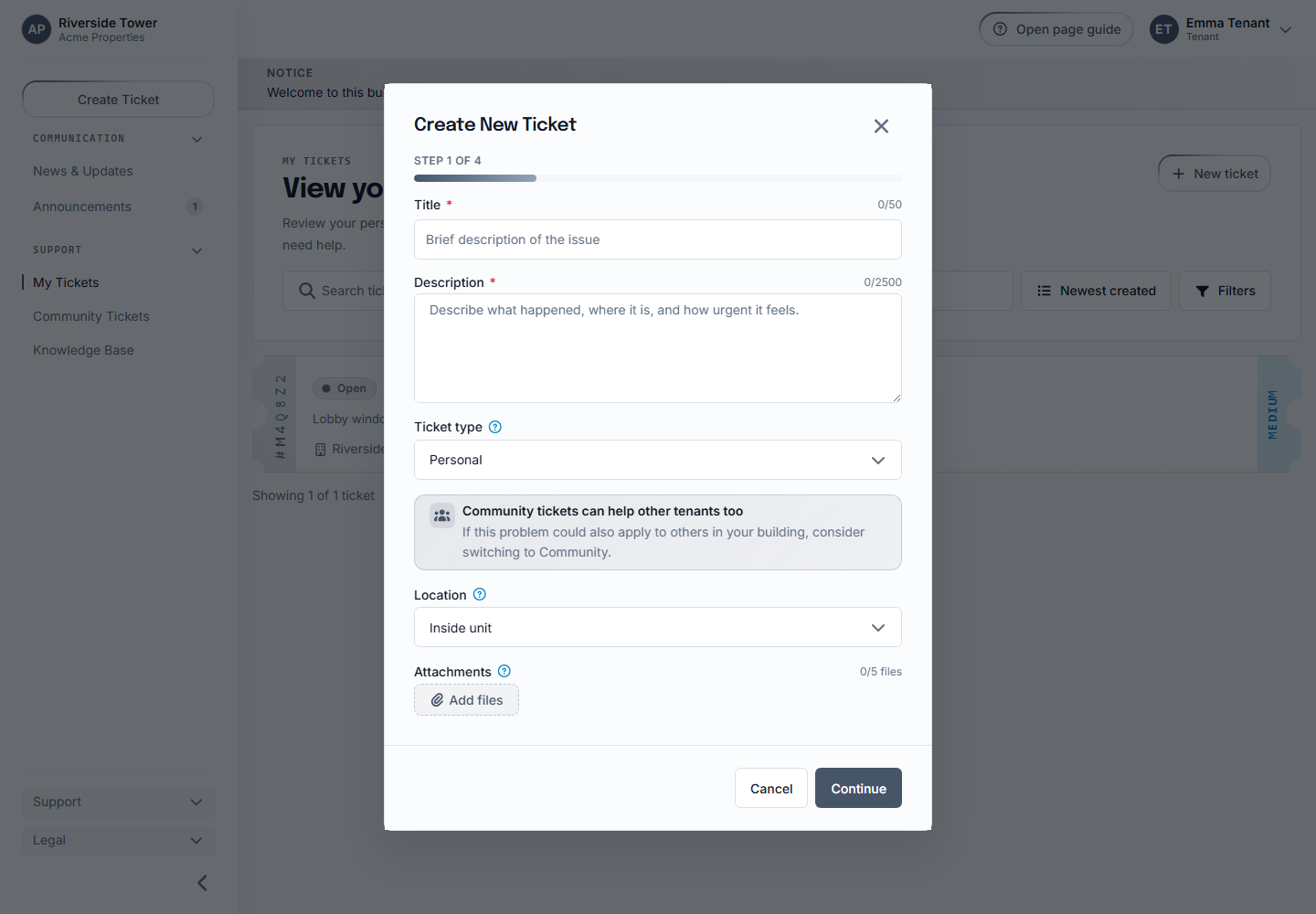
Create a ticket for building staff and understand every step in the Create Ticket modal.

Use this guide for common issues such as:

  • elevator outage
  • water leak
  • lost access badge
  • heating problem
  • noisy extractor fan
  • shared laundry problem
  • common area cleaning issue

Tenants with an active Sicket account.

Open the tenant dashboard and choose Create Ticket or New Ticket.

You can also start from My Tickets when the page includes a new ticket button.

Prepare:

  • a short title
  • a clear description
  • where the issue is happening
  • whether the issue is private or shared
  • photos or files if they help explain the issue

The first panel collects the main ticket information.

The title is a short summary of the issue.

Good examples:

  • Elevator stopped working
  • Water leaking under kitchen sink
  • Front door badge reader not responding
  • Heating not working in bedroom

Avoid titles that are too vague, such as Help or Problem.

The description explains what happened and what staff should know.

Useful details include:

  • when the issue started
  • whether it is still happening
  • whether it affects only you or shared areas
  • what you already tried
  • whether there is visible damage or safety risk

Example:

The elevator stopped working yesterday evening. It opens on the ground floor but does not move. I have been using the stairs since then.

Location type tells staff where the issue is happening.

Common choices:

  • Inside unit: use this for issues inside your own apartment or room.
  • Common area: use this for shared areas such as lobby, hallway, elevator, entrance, laundry room, storage room, or bike area.
  • Building exterior: use this for outside doors, facade, parking, or shared outdoor space where available.

Ticket type controls visibility.

Personal means the ticket is private between you and staff.

Community means the ticket can be visible to other tenants in the same building when community visibility is available.

Use community tickets for shared issues such as elevator outage, entry door problems, shared laundry problems, hallway lighting, or common area cleaning.

Use personal tickets for issues inside your unit or anything private.

Anonymous posting hides your identity from other tenants on community tickets.

Staff can still see the information they need to handle the issue.

If you view your own anonymous community ticket, Sicket may show it as Anonymous (You) so you can recognize it.

Tenant discussion controls whether other tenants can comment on a community ticket.

Enable discussion when tenant input may help, such as confirming whether an elevator outage affects others.

Disable discussion when the issue should be visible but not become a tenant conversation.

Attachments help staff understand the issue.

Good attachments:

  • photo of a leak
  • photo of a broken lock
  • screenshot of an error
  • short relevant document

Uploads are checked for allowed file type, size, and plan storage limits.

Sicket may show relevant active announcements and knowledge base entries before you submit.

This step helps avoid duplicate tickets when staff already published an answer.

Examples:

  • If you enter Elevator not working since yesterday, Sicket may show an active announcement about an elevator outage.
  • If you enter What do I do when the elevator is stuck?, Sicket may show a knowledge base entry explaining which stairwell to use.
  • If you enter Lost access badge, Sicket may show a knowledge base entry about replacing badges.

Announcements are active building messages from staff.

If an announcement already explains the issue, read it before continuing.

Knowledge base entries are reusable answers written by staff.

If an entry solves your question, you may not need to submit a ticket.

If Sicket says no relevant active announcements or knowledge base entries were found, continue with the ticket.

Sicket may show similar community tickets from your building.

This helps prevent duplicate community tickets.

Examples:

  • Another tenant already reported the elevator outage.
  • A shared laundry machine problem is already being handled.
  • Staff already responded to a front entrance access issue.

Open or read the similar ticket if it looks relevant.

If it describes the same issue, follow that ticket instead of creating a duplicate where possible.

If your issue is different, continue creating your ticket.

Sicket may suggest a priority and category.

The category groups the issue for staff.

Examples:

  • elevator
  • plumbing
  • access
  • heating
  • cleaning
  • maintenance

The priority helps staff triage.

Examples:

  • low for non-urgent questions
  • medium for normal maintenance
  • high for serious disruption
  • urgent for safety or critical access issues

AI suggestions are not final decisions. Staff workflows and system validation remain the source of truth.

The final panel shows a summary before submission.

Review:

  • title
  • description
  • ticket type
  • location type
  • anonymous setting
  • tenant discussion setting
  • attachments
  • suggested category
  • suggested priority

Select Submit when the summary is correct.

After submission:

  • Sicket creates the ticket.
  • You receive a ticket code.
  • Staff can review the ticket.
  • You can follow progress in My Tickets.
  • If it is a community ticket, other tenants in your building may see it depending on visibility settings.

Staff can see the details required to handle the ticket.

Other tenants cannot see personal tickets.

Other tenants should not see your residential unit information on community tickets.

Anonymous community tickets hide your identity from other tenants.

If Continue appears to reset a checkbox visually, check the final summary. The summary should reflect the actual saved choice.

If no suggested answers appear for an obvious issue, continue creating the ticket. Staff can still handle it.

If a file does not upload, check whether it is an allowed file type and size.

If you are unsure whether to choose personal or community, choose personal.